
MetaTrader VPS on Linux: Run MT4 and MT5 Expert Advisors 24/7
An expert advisor only earns while MetaTrader is running and logged in. On a home PC that means the machine never sleeps, the internet never drops and Windows never decides to restart for an update. Most traders move their terminals to a VPS for exactly that reason, and then meet the next problem: a Windows VPS has to be babysat. A Remote Desktop session that gets reset can take the terminal with it, a reboot leaves MetaTrader closed until somebody logs in again, and nobody tells you when any of this happens.
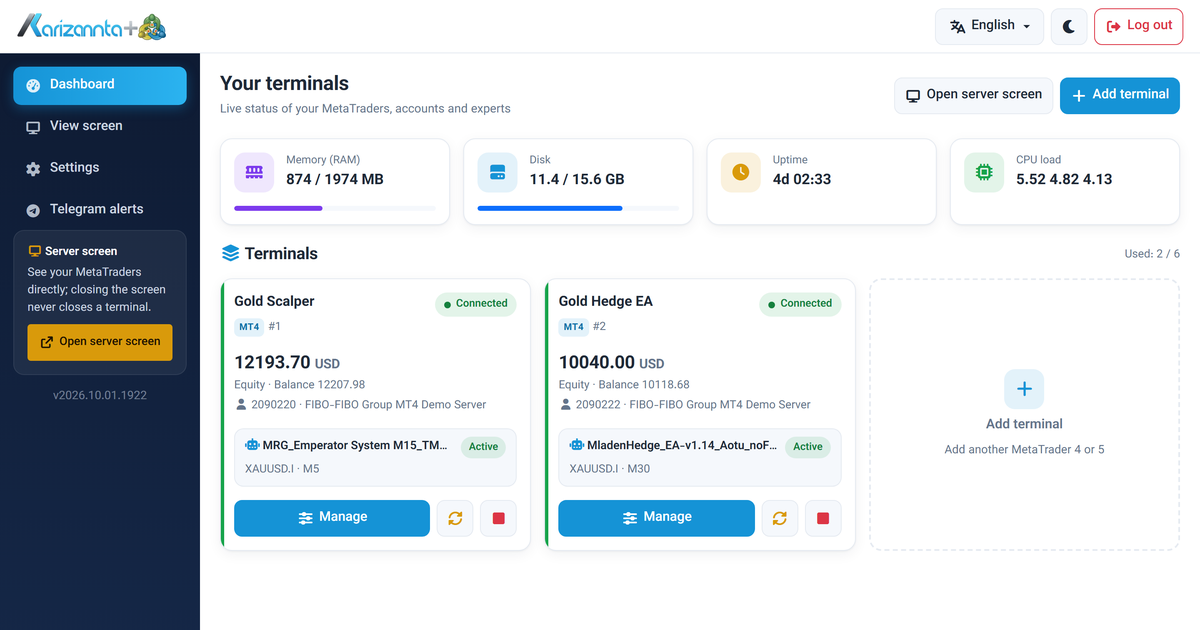
We built our MetaTrader VPS to take that job off your hands. It runs MT4 and MT5 on Linux, keeps every terminal running whether or not you are connected, logs back in by itself after any restart, and gives you a web panel to manage terminals, accounts and expert advisors without opening a remote desktop at all. This post walks through what it does, with screenshots of the real panel.
Why Linux instead of a Windows VPS
MetaTrader is a Windows program, so it runs here under Wine, the compatibility layer that lets Windows software run on Linux. That choice is what makes the rest possible:
- The screen is not tied to your session. Each server has one permanent desktop that MetaTrader draws on. Remote Desktop and the browser view just look at it. Disconnecting, or connecting from another device, never closes or restarts a terminal.
- Restarts are handled by the system, not by a person. Every terminal is a service. After a reboot, a crash or a hang, it is started again and logs back into its trading account on its own.
- Less overhead. Without a full Windows desktop to feed, more of the server's memory and CPU go to your terminals, which is why the plans can be priced per terminal.
Each terminal also runs in its own isolated Wine environment, so one terminal can never hide, freeze or crash another one.
Everything on one dashboard
After you log in, the dashboard shows every terminal with its live state: connected, connecting or logging in, the account and broker server, equity and balance, and the expert advisor running on it. The server's own memory, disk and CPU load are at the top, so you can see at a glance whether there is room for another terminal.

Add MT4 or MT5 terminals in one click
A new terminal is a name and a choice between MetaTrader 4 and MetaTrader 5. The panel creates a fresh, clean installation and starts it. You can mix both versions on the same server. The number of terminals depends on your plan, from one to six.

Log in to your trading account from the panel
Enter the account number, password and broker server, and the panel restarts the terminal and logs in. You see the result live: logging in, connecting to the broker, then connected with the account's balance. If the broker rejects the login, the panel tells you why.
The account password is stored encrypted on your own server and is never sent anywhere else. It is what lets the terminal log back in by itself after every restart, which MetaTrader 5 in particular does not do on its own.

Run expert advisors and change their inputs
Upload your expert advisor, choose it from the list, pick the symbol and timeframe, and switch it on. The panel shows the expert's inputs as a form, so you can change lot size, risk or any other setting and apply it without touching MetaTrader's own dialogs. Settings made here survive every restart.

Files go up the same way: experts, indicators, scripts, libraries, include files, .set presets, chart templates and data files, each in the right folder. One tick copies an upload to every terminal on the server.

The real MetaTrader screen, in your browser
When you want to look at the charts, open the server screen from the panel. It shows the actual MetaTrader windows in a browser tab, and Remote Desktop works too if you prefer it. Close the tab whenever you like: the terminals keep running.

Telegram alerts when something happens
Connect Telegram once in the settings and the server messages you when:
- a trade is opened or closed, with the profit or loss and the new balance;
- a terminal loses its connection to the broker for longer than you allow (quiet on weekends, when the market is closed);
- a terminal crashes or stops responding, and again when it has been restarted automatically;
- an expert advisor reports an error, or the symbol it trades gets no prices or cannot be traded on your account;
- equity falls below the drawdown limit you set;
- and once a day, if you want it, with a summary of every account.
Several people or a group can be connected to the same server. Alerts are tied to your server's own key, not to its IP address, so they can never reach anyone else.
Works on your phone
The panel is built for small screens as well, so checking a terminal or restarting it from your phone takes a few taps. It comes in English and Persian, with a dark mode for night trading.

MetaTrader VPS UK plans
Every plan is a UK VPS: all plans run on NVMe storage on Karizanta's own hardware in Coventry, UK, include the panel, Telegram alerts and both MT4 and MT5, and come with 15% off when paid yearly.
| Plan | Terminals | CPU | RAM | Disk | Monthly | Yearly |
|---|---|---|---|---|---|---|
| MT-1 | 1 | 1 core | 2 GB | 20 GB | $7 | $71.40 |
| MT-2 | 2 | 2 cores | 2 GB | 20 GB | $10 | $102 |
| MT-4 | 4 | 2 cores | 4 GB | 25 GB | $15 | $153 |
| MT-6 | 6 | 4 cores | 6 GB | 30 GB | $25 | $255 |
Upgrading to a bigger plan later raises the terminal limit automatically. All plans and ordering are on the MetaTrader VPS page.
Good to know
Will my expert advisor work?
The experts we have tested run normally, and DLL imports are allowed. Because MetaTrader runs under Wine rather than real Windows, an expert that depends on other Windows software being installed may not. The honest test is to run it on a demo account first, which is easy here: add a terminal, log in to a demo and switch the expert on.
Can I use any broker?
Yes, any broker that offers MT4 or MT5. For MT4 you type the server name or address, or upload the broker's .srv file. MT5 finds a broker's servers through its servers.dat file; if your broker is not found, the panel explains how to copy that file from MetaTrader 5 on your own computer.
What happens when the server restarts?
Every terminal starts again, logs back into its account and reattaches its expert advisor, without you doing anything. The same happens if a terminal crashes or stops responding.
Is Karizanta responsible for my trading results?
No. Karizanta provides the server and the software that keeps your MetaTrader terminals and expert advisors running. We do not trade for you, give investment advice, or choose or vet your expert advisors, brokers or settings. Trading carries a high risk of loss, and all profits and losses on your accounts are entirely your own responsibility.
Do I get root access?
No. This is a managed service: you work through the panel and the screen, and we keep the system, Wine and the panel itself up to date. Panel updates install automatically and never interrupt your terminals.
Ready to move your terminals? Choose a MetaTrader VPS plan and the server sets itself up within a few minutes of payment, with the panel address and password in your inbox.
Related reading
Self-host n8n on a VPS with Docker and Postgres
A complete, copy-pasteable path to run n8n on your own Ubuntu VPS with Docker Compose and Postgres: the environment variables that matter, nginx and TLS, and the webhook, timezone and queue-mode traps that catch everyone.
Read more →
Self-host Vaultwarden on a VPS: the secure setup
A copy-pasteable path to run Vaultwarden 1.37.3 behind nginx and TLS on a small VPS, with the security steps that matter: admin token hashing, closed signups, a WebSocket-aware proxy, fail2ban on the login endpoint, and a backup you have actually restored.
Read more →
Deploy Uptime Kuma on an Ubuntu VPS with HTTPS
A complete, copy-pasteable path to run Uptime Kuma 2.5.5 on Ubuntu 24.04: systemd unit, nginx reverse proxy with the WebSocket upgrade headers, and Let's Encrypt TLS. Plus the three traps that make the dashboard lie to you.
Read more →