
Deploy Immich on a VPS: photos, storage and backups
You rented a Linux box to pull your photos out of Google Photos or iCloud. Immich is the self-hosted library that replaces them, and it is the one app in this class where the spec sheet is not a formality. Get the RAM wrong and the machine-learning container will stall the server during your first big import.
This is the full Docker Compose deployment on Ubuntu 24.04 LTS, following the Immich v3 release line (tested against v3.3.1). Nginx in front, a real TLS certificate, the mobile login, and the three things that break actual installs: the proxy upload limit, the ML container eating memory, and upgrades that quietly assume you read the release notes.
What is Immich?
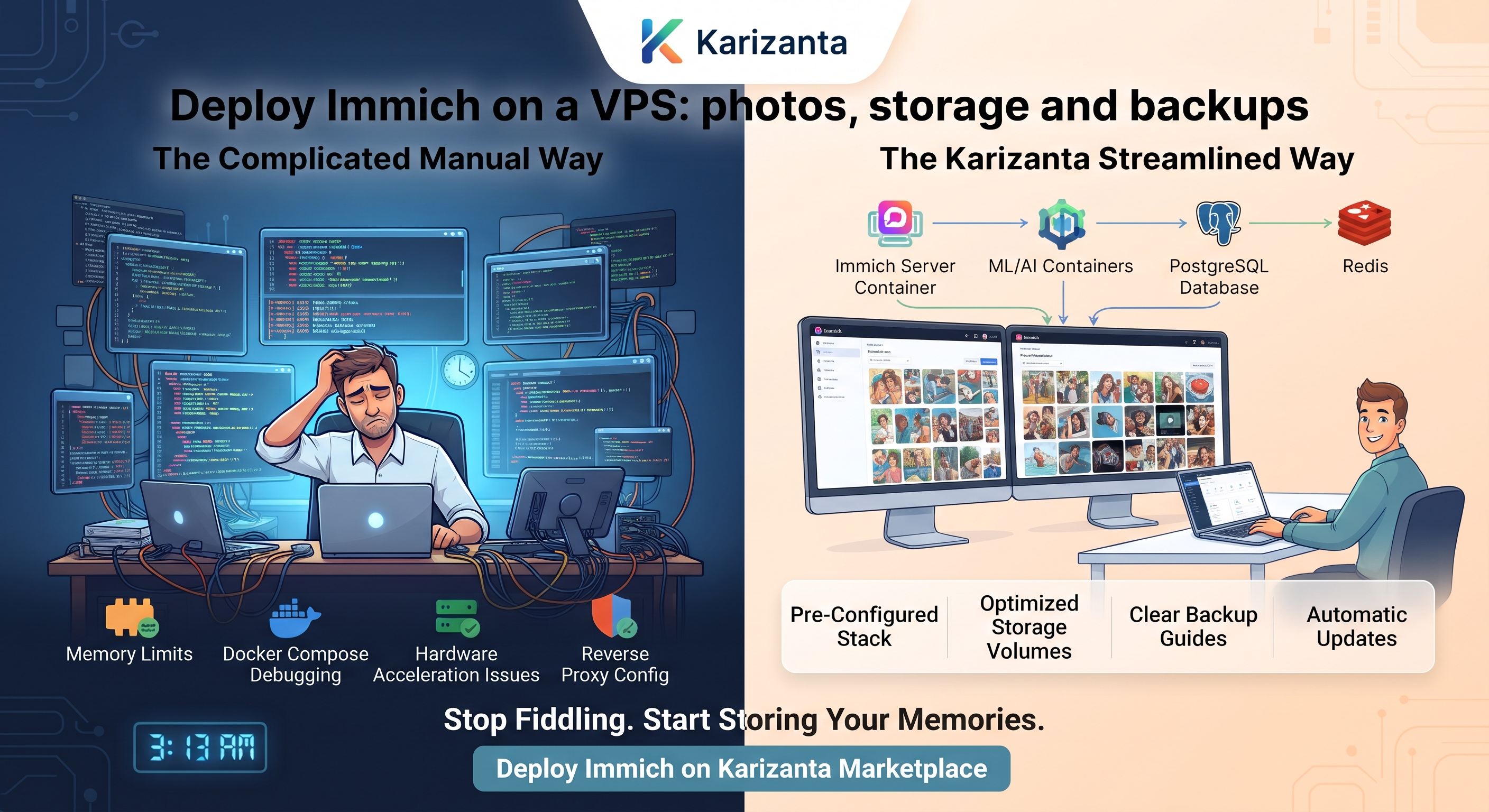
Immich is a self-hosted photo and video backup server. The mobile app auto-uploads your camera roll the way Google Photos does; the web app gives you a timeline, albums, search and face grouping. People self-host it to hold their own files instead of renting space in someone else's account. The stack is four containers: the server, a machine-learning worker, a Postgres database with vector extensions, and a Valkey (Redis-compatible) cache.
One caveat from the project itself before you commit: Immich is under heavy development, and point releases can change behaviour. Keep backups. Read the notes before every upgrade.
What you need
Here is the honest floor, taken from Immich's own requirements page. This is where the RAM number matters, so read it before you pick a plan.
| Resource | Minimum | Notes |
|---|---|---|
| RAM | 6 GB (recommended 8 GB) | 4 GB works only if you disable machine learning. Under Docker limits, Postgres alone wants 2 GB. |
| vCPU | 2 cores (recommended 4) | From v3, amd64 needs the x86-64-v2 microarchitecture, which is any CPU since roughly 2012. |
| Disk | Your library + 10–20% | Thumbnails and transcoded video add the overhead. Immich says the Postgres files typically occupy 1–3 GB. |
| OS | Ubuntu 24.04 LTS | Any 64-bit Linux works; Docker on non-Linux is poorly supported. |
So the decision is simple. Keep machine learning on and you want 6–8 GB of RAM. Turn it off and a 4 GB plan carries a single-user library without complaint. A UK VPS in Coventry is a sensible home for this if you want the files on UK soil; size it by the table and use a shared vCPU plan unless you are importing a very large archive. Disk is the part that grows, and you can raise it later from the client area with one reboot, keeping your data and IP, so there is no reason to over-buy on day one.
You also need a domain pointed at the server, and root or a sudo user. That is the whole shopping list.
Point the domain at the server
Create an A record for your host (and an AAAA for IPv6) pointing at the VPS. Replace the example addresses with yours.
photos.example.com.   A      203.0.113.10
photos.example.com.   AAAA   2001:db8::10
Confirm it has propagated before you ask certbot for a certificate:
dig +short photos.example.com
# 203.0.113.10
If that returns nothing or the old IP, wait. A certificate request against a stale record fails the HTTP challenge.
Install Docker and the Compose plugin
Immich needs the docker compose plugin (v2). The old docker-compose binary is not supported.
sudo apt update && sudo apt upgrade -y
curl -fsSL https://get.docker.com | sudo sh
Check the plugin is present:
docker compose version
# Docker Compose version v2.x.x
If you see docker: 'compose' is not a docker command, you have v1 only. Install the plugin with sudo apt install docker-compose-plugin and try again.
Create the directory layout
Keep the stack config and the photo store in predictable places. The upload location is where every original, thumbnail and transcode lands, so put it on a disk with room to grow.
sudo mkdir -p /opt/immich
sudo mkdir -p /srv/immich/library /srv/immich/postgres
cd /opt/immich
Do not put the Postgres data directory on a network share or an NFS mount. Immich treats that as unsupported, and vector indexes corrupt on filesystems that lie about fsync.
Download and configure Immich
Pull the two official files into /opt/immich:
wget -O docker-compose.yml https://github.com/immich-app/immich/releases/latest/download/docker-compose.yml
wget -O .env https://github.com/immich-app/immich/releases/latest/download/example.env
Edit .env. The three lines that matter:
UPLOAD_LOCATION=/srv/immich/library
DB_DATA_LOCATION=/srv/immich/postgres
DB_PASSWORD=change-me-to-a-long-random-A-Za-z0-9-string
IMMICH_VERSION=v3.3.1
TZ=Europe/London
Two rules the docs are strict about. The database password must be only A–Z, a–z and 0–9; punctuation breaks the connection string. And pin IMMICH_VERSION to a real tag rather than leaving the floating release default, so an unattended restart cannot pull a new major version under you.
Turning off machine learning on a small server
The ML worker is what loads your photos for smart search and face detection. It is also the container that pulls hundreds of megabytes of model into RAM. On a 4 GB server it is the first thing to remove.
Comment out the whole immich-machine-learning service block in docker-compose.yml, then disable it in the app later under Administration → Settings → Machine Learning. Do both. If you drop the container but leave the feature enabled, the server logs a stream of failed connections to a host that no longer exists. You lose search-by-content and face grouping; everything else, including upload and albums, works as normal.
Start it and set it to survive a reboot
Bring the stack up:
docker compose up -dThe official compose file already sets restart: always on each service, so the Docker daemon brings Immich back after a reboot on its own. You do not strictly need a systemd unit. If you prefer one explicit control point for the whole stack, drop this in at /etc/systemd/system/immich.service:
[Unit]
Description=Immich (docker compose)
Requires=docker.service
After=docker.service network-online.target

[Service]
Type=oneshot
RemainAfterExit=yes
WorkingDirectory=/opt/immich
ExecStart=/usr/bin/docker compose up -d
ExecStop=/usr/bin/docker compose down

[Install]
WantedBy=multi-user.target
sudo systemctl daemon-reload
sudo systemctl enable --now immich.serviceVerify it works
Three checks, from cheap to real. First, the containers are up:
docker compose ps
# immich_server            Up (healthy)
# immich_postgres          Up (healthy)
# immich_redis             Up (healthy)
Then the API answers on its own port:
curl http://localhost:2283/api/server/ping
# {"res":"pong"}
If curl hangs or refuses the connection, read the server log before anything else:
docker compose logs immich-server --tail=50A line like database system is starting up on first boot is normal; give it a minute. A repeated password authentication failed means your DB_PASSWORD contains a character the connection string could not parse.
Put nginx in front
Immich must be served at the root of a domain, never a sub-path. The upload settings are the reason this section exists. Install nginx and write the site:
sudo apt install -y nginx
sudo nano /etc/nginx/sites-available/immich
server {
listen 80;
server_name photos.example.com;
client_max_body_size 50000M;
proxy_request_buffering off;
client_body_buffer_size 1024k;
location / {
proxy_pass http://127.0.0.1:2283;
proxy_http_version 1.1;
proxy_set_header Upgrade $http_upgrade;
proxy_set_header Connection "upgrade";
proxy_set_header Host $host;
proxy_set_header X-Real-IP $remote_addr;
proxy_set_header X-Forwarded-For $proxy_add_x_forwarded_for;
proxy_set_header X-Forwarded-Proto $scheme;
}
}sudo ln -s /etc/nginx/sites-available/immich /etc/nginx/sites-enabled/
sudo nginx -t && sudo systemctl reload nginxThe client_max_body_size 50000M line is the one people forget. The default nginx limit is 1 MB, which rejects any video and most raw photos with a 413 before they reach Immich. The proxy_request_buffering off line stops nginx writing every upload to a temporary file first, which otherwise fills the disk and slows large imports. The Upgrade and Connection headers keep the websocket alive, which is how the UI updates its import progress live.
Issue the TLS certificate
sudo apt install -y certbot python3-certbot-nginx
sudo certbot --nginx -d photos.example.com
Certbot edits the nginx site to add the 443 block and the redirect from 80. Confirm the renewal timer is active so you are not doing this by hand in 90 days:
systemctl list-timers | grep certbotFirst login and the mobile app
Open https://photos.example.com. The first visitor is prompted to create the admin account; do that immediately, because the signup page stays open until an admin exists.
On the phone, install the Immich app, choose log in, and enter the server URL as the full HTTPS address including the scheme: https://photos.example.com. A common first-try failure is entering a bare hostname or the :2283 port; the app wants the public URL that nginx serves, not the container port.
Management commands
Everything runs from /opt/immich.
docker compose ps                       # status
docker compose logs -f immich-server    # follow the server log
docker compose stop                     # stop without removing
docker compose up -d                    # start / recreate
docker compose down                     # stop and remove containers
Back up both halves: the files under UPLOAD_LOCATION and a dump of the database. The upload folder you can copy with rsync. The database uses the documented dump command:
docker exec -t immich_postgres pg_dumpall --clean --if-exists --username=postgres \
  | gzip > /srv/immich/immich-db-$(date +%Y%m%d).sql.gz
Upgrades are two commands, but read first:
docker compose pull && docker compose up -d
docker image prune
Production hardening
A firewall that exposes only what nginx serves:
sudo ufw allow OpenSSH
sudo ufw allow 80/tcp
sudo ufw allow 443/tcp
sudo ufw enable
Note that port 2283 is not in that list. The compose file maps the server port to all interfaces by default, which means it is reachable on the public IP unless you stop it. Change the server port mapping in docker-compose.yml to bind to loopback only:
    ports:
      - '127.0.0.1:2283:2283'
Then nginx still reaches it on 127.0.0.1, but the wider internet cannot. For brute-force protection on SSH, fail2ban is worth ten minutes; the steps are in our guide to securing a VPS with a firewall, SSH and fail2ban. The one metric to watch on this box is memory. If the host starts swapping during an import, that is the ML worker, and you are back to the 4 GB decision above.
Where this can bite you
The 413 on upload. If the web uploader or the phone throws a request-entity-too-large error, it is nginx, not Immich. You missed client_max_body_size or set it too low. Immich's own example uses 50000M precisely so no single file is ever the limit.
The ML container eating RAM. On first import the worker pulls a model and loads it into memory, and on a small server that is the moment the OOM killer fires and takes a container with it. If imports stall and docker compose ps shows immich_machine_learning restarting, the machine is too small for ML. Disable it as described above rather than fighting it.
Upgrades that changed something. Immich ships breaking changes, and the project is explicit that the server is only compatible with the matching major version while the mobile app works with the current and prior major. Update the phone apps before the server, never downgrade, and read the release notes and the GitHub discussions for breaking-change posts before you run docker compose pull. Pinning IMMICH_VERSION is what makes that a deliberate step instead of an accident.
Disk on the wrong filesystem. Keep the Postgres directory on the local SSD. On a network mount the vector extension will eventually corrupt its index, and that failure looks like random search errors long before it looks like a disk problem. If storage is tight, our notes on reclaiming Docker disk space safely cover the prune commands that are safe to run under a live stack.
Where to run this
Immich is a photo library, so two things decide the plan: how much RAM the machine-learning worker needs, and where you are comfortable your photos physically sitting. For a single person or a family with ML off, a 4 GB shared vCPU plan is enough; keep ML on and move to 6–8 GB. Because the disk is the part that fills, pick a plan you can grow, and raise the disk later from the client area with one reboot.
On region, let data residency choose for you rather than a latency chart. If you are in Britain and want your family photos on UK soil, the UK VPS in Coventry is the straightforward answer. If you want them inside the EU, the Sweden VPS in Stockholm sits in the GleSYS facility and keeps the data under EU rules. Either way, add scheduled off-site backups so a single server loss is not a single point of failure for every photo you own.
Sources
- Immich — Requirements (unknown)
- Immich — Docker Compose [Recommended] (unknown)
- Immich — Reverse Proxy (unknown)
- Immich — Upgrading (unknown)
- Immich releases (v3.3.1) (2025)
Frequently asked questions
What is the minimum VPS size for Immich?
6 GB of RAM is Immich's recommended floor, 8 GB is comfortable. You can run it on 4 GB only if you disable the machine-learning container. Plan disk as your library size plus 10–20% for thumbnails and transcodes, with the Postgres files typically occupying 1–3 GB on top.
Can I disable machine learning in Immich to save RAM?
Yes. Comment out the immich-machine-learning service in docker-compose.yml and disable it under Administration → Settings → Machine Learning. You lose smart search and face grouping, but uploads, albums and the timeline work normally. Do both steps, or the server keeps logging failed connections to the missing worker.
Why do my photo uploads fail with a 413 error?
That is the reverse proxy, not Immich. Nginx defaults to a 1 MB request limit, which rejects videos and large photos. Set client_max_body_size to a large value (Immich's example uses 50000M) and add proxy_request_buffering off, then reload nginx.
What port does Immich listen on?
The Immich server listens on port 2283. Your reverse proxy forwards to it on that port. Do not expose 2283 to the public internet; bind it to 127.0.0.1 in docker-compose.yml and let nginx handle 80 and 443.
Is it safe to auto-upgrade Immich?
No. Immich ships breaking changes, and the server is only compatible with its matching major version. Pin IMMICH_VERSION to a specific tag, read the release notes and GitHub discussions before upgrading, update mobile apps first, and never downgrade.
Related reading

Self-host n8n on a VPS with Docker and Postgres
A complete, copy-pasteable path to run n8n on your own Ubuntu VPS with Docker Compose and Postgres: the environment variables that matter, nginx and TLS, and the webhook, timezone and queue-mode traps that catch everyone.
Read more →
Self-host Vaultwarden on a VPS: the secure setup
A copy-pasteable path to run Vaultwarden 1.37.3 behind nginx and TLS on a small VPS, with the security steps that matter: admin token hashing, closed signups, a WebSocket-aware proxy, fail2ban on the login endpoint, and a backup you have actually restored.
Read more →
Deploy Uptime Kuma on an Ubuntu VPS with HTTPS
A complete, copy-pasteable path to run Uptime Kuma 2.5.5 on Ubuntu 24.04: systemd unit, nginx reverse proxy with the WebSocket upgrade headers, and Let's Encrypt TLS. Plus the three traps that make the dashboard lie to you.
Read more →