
How to Migrate a cPanel Account to a Debian or Ubuntu VPS (Without Paying for a Panel Licence)

A server with three or four small sites on it used to be a cheap thing to run. Since cPanel moved to per-account pricing in 2019 the licence has gone up every year, and for a box that hosts a handful of WordPress sites it is now often a bigger line on the invoice than the server itself. That is usually the moment people start asking whether they can leave.
You can. The hard part is not the files. It is everything around them: the databases and the users that own them, the absolute /home/olduser/ paths baked into config files, the certificate, the cron jobs nobody remembers adding. This guide walks through what a cPanel backup actually contains, how to move one onto a plain Debian 13 or Ubuntu 24.04 server by hand, and how to do the same job with the importer built into KA Panel, our free hosting control panel.
Why a manual move goes wrong
Copying public_html takes a minute. What eats the afternoon is the list of small things that each break the site in a different way:
- Databases and their users. Every database needs to be created, imported, and given back the exact user and password the application's config file expects. cPanel prefixes both with the account name, so
shop_wpstaysshop_wponly if you recreate it that way. - Hard-coded paths. WordPress plugins, Laravel caches, OpenCart's
config.phpand plenty of.htaccessfiles contain/home/olduser/public_htmlin full. Move to a different home directory and they point at nothing. - The certificate. You can issue a new Let's Encrypt certificate, but only once DNS points at the new server. Until then the site you are testing has no valid HTTPS, and a paid certificate has to be carried over with its intermediate chain or some clients will refuse it.
- Cron jobs. They live outside the home directory, so they are the thing most often forgotten, and when they are remembered they often still call the old PHP binary path.
- PHP version and web server. cPanel's EasyApache may have run the site on PHP 8.1 behind Apache with an
.htaccessfull of rewrite rules. A default nginx install on the new server ignores.htaccesscompletely.
What is inside a cPanel full backup
A full backup made from cPanel's Backup page is a file named like backup-11.7.2026_09-14-02_shop.tar.gz. The one an administrator makes with /scripts/pkgacct is called cpmove-shop.tar.gz. The layout inside is the same, and only a few directories matter for a move:
| Path in the archive | What it holds |
|---|---|
homedir/ | The whole home directory: public_html, addon-domain folders, mail/, ssl/ and the hidden cPanel folders. |
mysql/*.sql, mysql/*.create | One dump per database, plus the statement that creates it. |
mysql.sql | The GRANT statements for the account's database users, including their password hashes. |
cp/<user> | Account settings in KEY=value form. DNS= is the primary domain. |
userdata/<domain> | Per-domain settings: document root, aliases such as www, and the PHP version (for example ea-php81). |
cron/<user> | The account's crontab. |
dnszones/ | The zone files, if the server hosted DNS. |
va/, vf/ | Mail forwarders and filters. |
The password hashes in mysql.sql are the useful surprise. MariaDB accepts the same mysql_native_password hash, so a database user can be recreated with its old password without anyone knowing what it was, and the application's config file keeps working unchanged.
Option 1: by hand, in a terminal
This is the route to take if you want to understand every step, or if you are not putting a panel on the new server. It assumes a clean Debian 13 or Ubuntu 24.04 with nginx, PHP-FPM and MariaDB installed, and a site user called shop.
1. Unpack the archive somewhere private
mkdir -p /root/import && cd /root/import
tar -xzf /root/backup-11.7.2026_09-14-02_shop.tar.gz
ls backup-*/
Treat the contents as untrusted. The archive was built from a directory its owner controlled, so do not extract it straight into / or into a live home, and do not follow its symbolic links.
2. Copy the site files and set ownership
rsync -a --no-links backup-*/homedir/public_html/ /home/shop/public_html/
chown -R shop:shop /home/shop/public_html
3. Recreate the databases and users
for f in backup-*/mysql/*.create; do mariadb < "$f"; done
for f in backup-*/mysql/*.sql; do
  db=$(basename "$f" .sql)
  mariadb "$db" < "$f"
done
grep -E "^GRANT" backup-*/mysql.sql
Read the GRANT lines before you run them. They usually include the cPanel account itself and remote hosts you no longer need. Recreate only the users the application uses, for localhost, with the hash from the file:
CREATE USER 'shop_wp'@'localhost' IDENTIFIED BY PASSWORD '*2470C0C06DEE42FD1618BB99005ADCA2EC9D1E19';
GRANT ALL PRIVILEGES ON `shop_wp`.* TO 'shop_wp'@'localhost';
4. Rewrite the old home path
grep -rlF '/home/olduser/' /home/shop/public_html \
  --include='*.php' --include='.htaccess' --include='*.ini' --include='*.env' \
  | xargs -r sed -i 's#/home/olduser/#/home/shop/#g'
Limit this to text config files. Running sed across uploads or a database dump can corrupt binary files and serialized PHP strings. For WordPress, change paths stored in the database with wp search-replace, which understands serialized data.
5. Web server, PHP version and cron
Look up the PHP version in userdata/<domain> and give the site an FPM pool of that version. If the site depends on .htaccess, either translate the rules to nginx or put Apache behind nginx for that site. Then copy the useful lines from cron/<user> into the new user's crontab, fixing any paths as you go.
6. The certificate
For a Let's Encrypt site, issue a new certificate after the DNS change. For a paid certificate, take the .crt and .key from homedir/ssl/ and append the issuer's intermediate certificate before you install it. A server that sends only the leaf certificate works in most desktop browsers and fails on many phones and API clients.
Option 2: KA Panel's cPanel importer
KA Panel imports the full backup made from cPanel's Backup page with one command, run as root on the new server:
webpanel import-cpanel /root/backup-11.7.2026_09-14-02_shop.tar.gzIn one pass it:
- creates a hosting account with its own system user and panel login, keeping the cPanel user name unless you pass
-as newname; - writes the home directory through the account's file jail, skipping cPanel's own folders and never recreating symbolic links from the archive;
- creates every database, imports it as a database user confined to that one database, and recreates the database users with their original password hashes, so wp-config.php and its equivalents keep working. If a hash cannot be used, it sets a new password and prints it;
- rewrites
/home/olduser/to the new home in the application's config files and lists every file it changed; - creates the site for the primary domain with the document root,
wwwalias and PHP version recorded in the backup; - installs the certificate from the backup if it is still valid, completing the intermediate chain when the backup holds only the leaf;
- imports the cron jobs paused, with the paths rewritten, so you can read each one on the Cron jobs page before it runs;
- recognises WordPress, OpenCart and Laravel and adds the matching nginx access rules. For OpenCart it also turns off
open_basedir, which OpenCart 4 cannot run under.
It ends with a report: the new login, the databases and users, the files it rewrote, and a warning for everything it could not do. Use -no-site to import files and databases without creating the site, which is useful for a dry run while the old server is still live.
If the site relies on .htaccess, open its page after the import and switch Web server to Apache behind nginx. nginx keeps ports 80 and 443 and the certificate, and Apache reads the .htaccess rules, running as the site's own user.
What the importer does not do
Plan around these:
- Email is not imported. The
mail/folder and the forwarders are left out. Create the mailboxes in the panel and move existing mail with an IMAP sync tool such asimapsync, or keep mail where it is and change only the A records. - Only the primary domain becomes a site. Addon domains and subdomains arrive as folders in the home directory. Add each one in Domains and point its document root at its folder.
- DNS zones are not imported. If the new server will host DNS, check the zone the panel creates against the old one, especially TXT and CAA records.
- One account per run. A server with twenty accounts is twenty commands, and it is worth checking each report.
Before you change DNS
- Test through your hosts file. Add
203.0.113.10 example.com www.example.comto your own machine's hosts file, with the new server's IP, and use the site for real: log in, submit a form, place a test order. - Check the PHP version and extensions. Compare
php -mon both servers. A missingintl,imagickorsoapextension shows up as a blank page, not a clear error. - Lower the TTL a day ahead. Set the A records to 300 seconds at least one old TTL before the move, so the change spreads in minutes rather than hours.
- Decide where mail lives. If mail is moving, the MX, SPF, DKIM and DMARC records all change with it. If it is staying, leave MX and SPF alone and change only the A records for the website.
- Take one last export. Put the old site in maintenance mode, dump the databases again and import them, so orders or comments made during testing are not lost.
Leave the old account running for a week after the switch. It is the quickest rollback there is.
Where to run it
KA Panel runs on any clean Debian 13 or Ubuntu 24.04 server, ours or anyone else's. With us, a VPS in Coventry, the Netherlands, Germany or Stockholm with 2 GB of memory is enough for a handful of sites, or 4 GB if the panel will also run email. If you are still deciding which panel to move to, our comparison of free control panels for Debian and Ubuntu covers the alternatives honestly, and if a Node.js or Python service will share the server, see hosting PHP, Node.js and Python together.
Sources
- cPanel documentation: Backup and the pkgacct script.
- cPanel: pricing (per-account licensing).
- MariaDB: CREATE USER … IDENTIFIED BY PASSWORD.
- WP-CLI: wp search-replace.
- KA Panel documentation: installing, sites and the cPanel importer.
Frequently asked questions
Can I import a cPanel backup without root access on the old server?
Yes. The full backup from cPanel's own Backup page is made by the account holder and needs no WHM or root access. That archive is what the importer reads.
Will my database passwords change?
Not normally. The backup holds each database user's password hash, and KA Panel recreates the user with that hash, so the application's config file keeps working. If a hash has an unexpected shape, the panel sets a new password and prints it in the report.
Does the importer move my email?
No. Mailboxes have to be created in the panel and existing mail copied over IMAP, for example with imapsync. Many people keep mail where it is and move only the website.
My site uses .htaccess rewrite rules. Will they work after the move?
On nginx alone they are ignored. In KA Panel, switch the site's web server to Apache behind nginx and the rules are read as before, with Apache running as the site's own user.
What about addon domains?
Their files come across inside the home directory, but only the primary domain is created as a site. Add each addon domain in the panel and point its document root at its existing folder.
Related reading
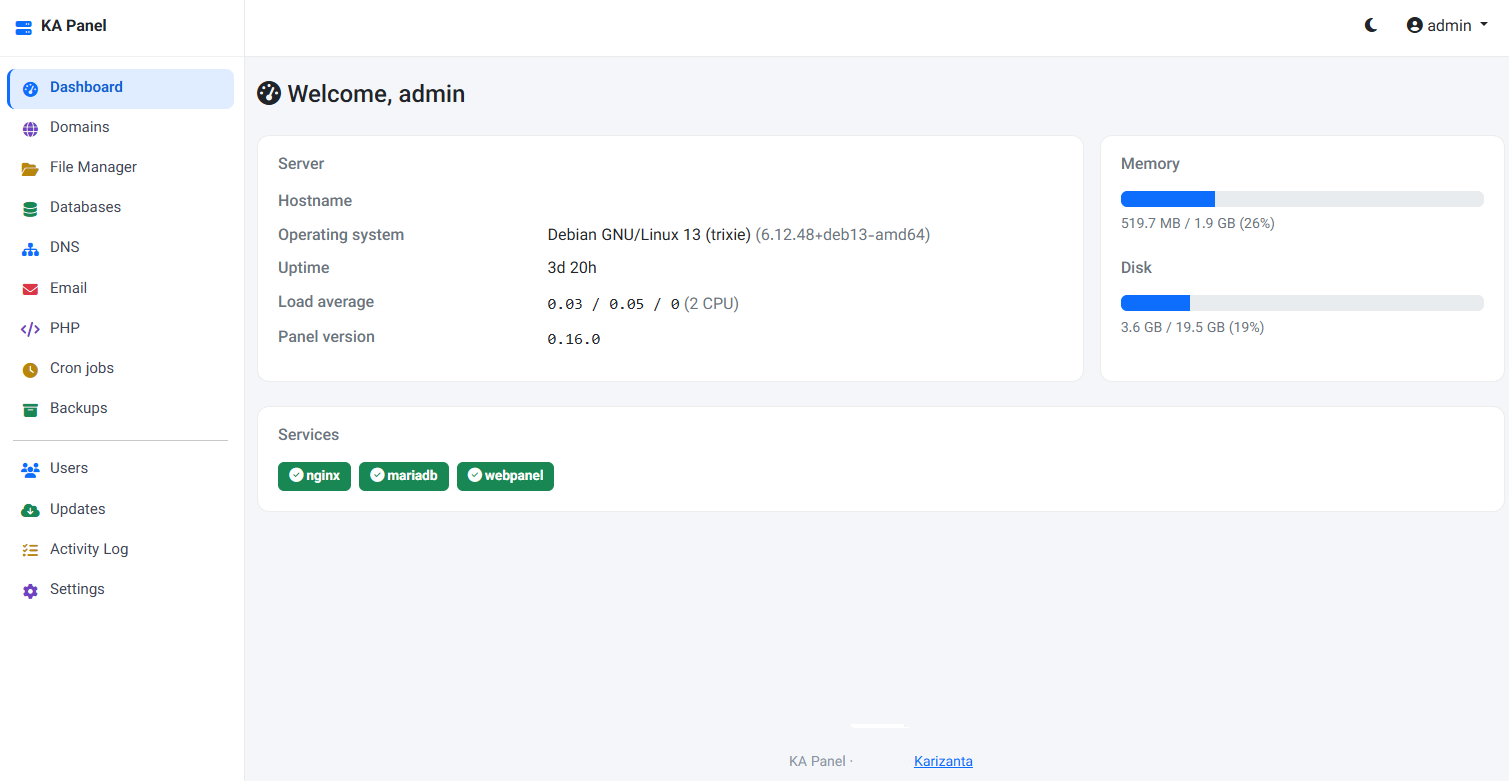
KA Panel: the free hosting control panel we built for our own customers
KA Panel is Karizanta's own hosting control panel, free with every server we run: sites, per-site PHP, certificates, databases, email with webmail, DNS, backups and customer logins, installed on Debian with one command.
Read more →
Free Linux Web Hosting Control Panels for Debian & Ubuntu Compared: Architecture, Mail, and Trade-Offs
An honest comparison of free hosting panels for Debian and Ubuntu: web server, .htaccess, mail, cPanel import, backups and licence, from each project's own docs.
Read more →
Hosting PHP, Node.js, and Python Sites Together on One Debian or Ubuntu VPS
Run PHP, Node.js and Python sites on one small VPS without a container each: per-site users, PHP-FPM pools, systemd services with memory limits, and nginx.
Read more →